To generate App Store screenshots with AI, upload 3–10 real captures from one app, let the AI map each screen to a purpose, headline, and theme, preview the hero frame, generate the full set, revise individual slides by chat, and export a ZIP at 1290×2796 for iPhone or 1080×1920 for Google Play.
That is the short version. The longer version is about the decisions around each step: which captures to feed in, what to check before you pay for a full set, where the AI is reliably good, and where a human still has to own the result. This guide walks through the whole AI app screenshot generator workflow using StoreShots AI, including a worked example with honest credit math.
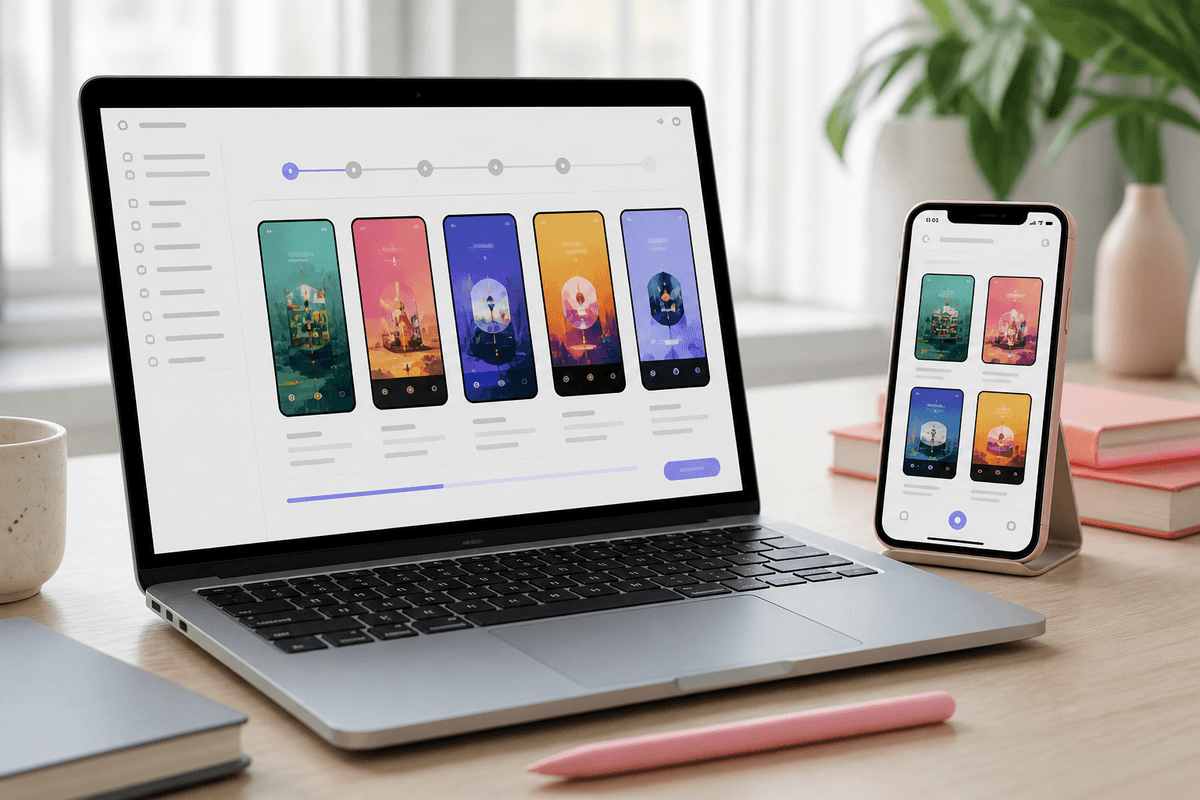
Step 1: Prepare inputs the AI can actually use
Output quality is capped by input quality. The AI does not redraw your interface; your uploaded UI stays the source and is placed into frames and layouts. So a cluttered capture produces a cluttered slide, however good the headline is.
Collect 3–10 clean screenshots from one app and one platform. Use realistic demo data (believable names, plausible balances, no lorem ipsum), hide debug banners, and clear notification clutter from the status bar. Capture the screens that prove your core outcome rather than every screen you have. If you need help choosing them, how to make App Store screenshots covers capture planning in depth.
- 3–10 real captures from the same app and platform build
- A one-paragraph app description: what it does and for whom
- Target audience in plain words (e.g. freelancers paid irregularly)
- Tone: calm, playful, premium, direct, or similar
- Any claims you can and cannot make (e.g. no 'bank-level security' unless true)
Step 2: What the AI does with your captures
Once uploaded, the AI does the planning work a designer or marketer would usually do in a first pass. It reads each capture, decides what job that screen should do in the set (hero outcome, proof, feature depth, trust), drafts a headline and subtext for it, and picks a visual theme that suits your app's colours and category.
Read this plan as a draft brief, not a finished answer. The most common fix is ordering: the AI may lead with a feature screen when your strongest outcome is actually on screen three. Reorder before spending more credits. App Store screenshot order that converts explains why the first frames matter most.
Step 3: Preview the hero frame before generating
Before committing to a full set, preview the hero frame. A wizard preview costs 0.5 credit and shows you the theme, typography, frame, and headline treatment on your most important slide. If the direction is wrong here, it will be wrong on every slide, so this is the cheapest place to catch it.
Ask three questions of the preview. Is the headline legible at thumbnail size? Does the background compete with the UI? Does it look like your brand, or like a template? If any answer is no, adjust and preview again rather than generating six slides you will revise later.
Step 4: Generate the full pack
Generating costs 1 credit per final slide, so a six-slide set is six credits. Generate only the slides you intend to ship; extra frames you will discard are wasted credits. On the App Store you can upload up to 10 screenshots per device size per localization, and on Google Play 2–8 phone screenshots, but most apps tell a tighter story in five to seven.
StoreShots exports App Store iPhone PNGs at 1290×2796 and Google Play phone PNGs at 1080×1920. It does not generate iPad screenshots, Android tablet sizes, the Play feature graphic, or app preview videos, so plan those separately if your listing needs them.
Start an AI screenshot projectUpload real captures, preview the hero frame, then generate App Store or Play Store sets.Step 5: Review checklist before you revise anything
Review the whole set side by side before touching individual slides. Fixing one slide at a time without seeing the set tends to create inconsistency. Use a fixed checklist so the review is fast and repeatable.
- Every headline is true for the current build, with no features you have not shipped
- Headlines read at thumbnail size and are not truncated or crowded
- The first two or three slides carry the main outcome on their own
- The UI in each frame is the real screen the headline describes
- Tone and terminology match your app and website
- No two slides say the same thing in different words
- Brand colours look right, not merely close
- No sensitive or personal data visible in captures
Step 6: Chat-revise single slides, then export
When one slide is off, revise that slide only by describing the change in chat: shorten the headline, swap the emphasis, calm the background. Each slide chat revision costs 1 credit, and the rest of the set stays as it was. Be specific; 'make it better' produces a different slide, while 'cut the headline to four words that mention weekly limits' produces the slide you wanted.
When the set passes your checklist, export it as a ZIP of PNGs. Re-exporting work you have already generated is free, so downloading again after a later revision does not cost extra. Before uploading, run a final pre-submit check to catch dimension and format issues.
Localization: one story, per-locale packs
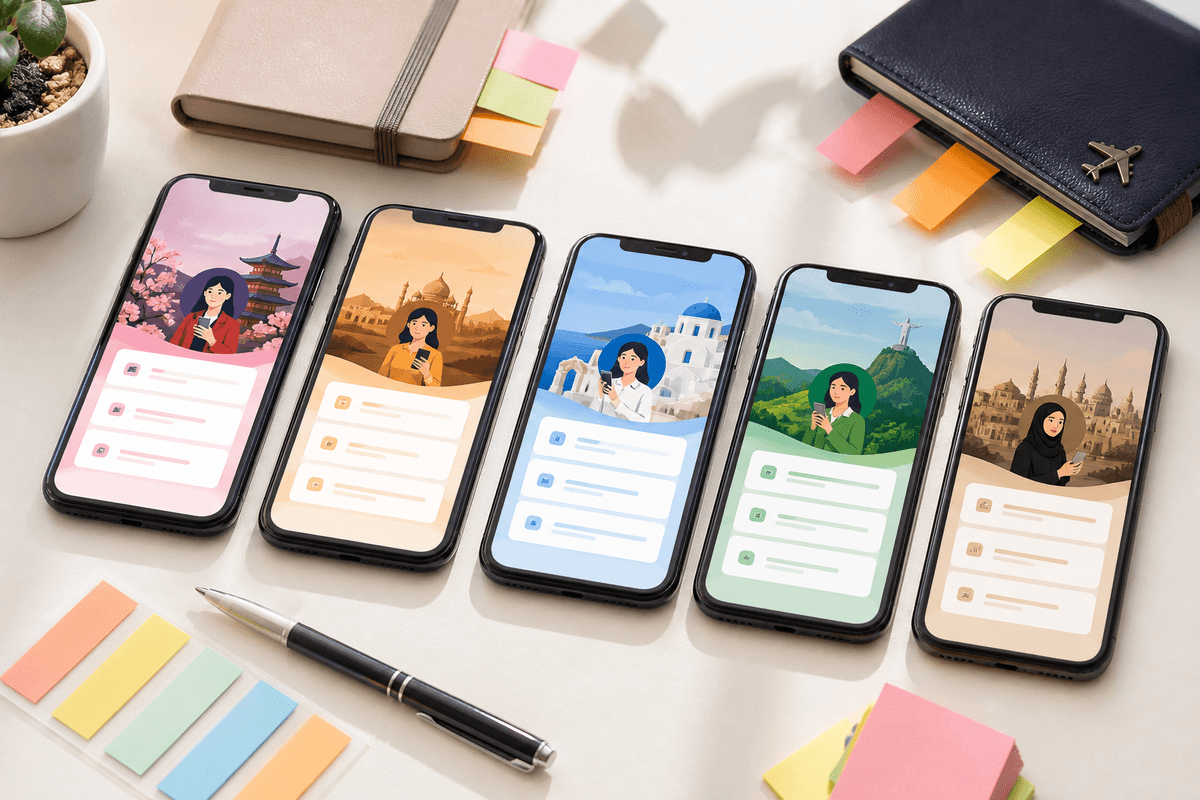
Localized screenshots are where an automated screenshot maker saves the most repetitive work, and also where carelessness shows most. Capture screens from the localized build so the in-app text matches the headline language; an English UI under a German headline looks unfinished.
Treat each locale as its own pack built from the same story. Let the AI draft headlines in the target language or paste in copy from your translator, then have a native speaker check every headline before export. Budget credits per locale: each generated slide in each language is a slide. The localization guide covers which markets to prioritise first.
Where humans must stay in the loop
AI drafts; you publish. Three areas cannot be delegated. First, claims accuracy: the AI writes persuasive copy from what it sees and what you tell it, and it can overstate. Any number, comparison, or 'first'/'best' claim needs a human who knows it is true. Second, brand: the AI picks a reasonable theme, but only you know whether it fits your positioning. Third, legal and compliance: health, finance, and kids' apps carry rules about what can be promised, and store review guidelines prohibit misleading listings.
Where AI is weak is predictable. It does not know your competitors' listings or your conversion data. It can produce headlines that sound generic in crowded categories. It cannot fix a weak capture or a confusing UI. And it has no view of which slide converts better; for that you need Product Page Optimization on iOS or store listing experiments on Google Play, covered in the A/B testing guide.
Worked example: a hypothetical budgeting app
Here is a clearly hypothetical example. A small team ships a budgeting app for freelancers with irregular income. They upload seven captures from the iOS build: home dashboard, income forecast, category budgets, a bill reminder, a weekly spending summary, savings goals, and settings. Tone: calm and reassuring. Audience: freelancers who dread month-end.
The AI drops settings as low value and proposes the six-slide plan below. The team moves the forecast ahead of the dashboard because predicting income is the real differentiator, then previews the hero frame once.
- Slide 1 — Income forecast: 'Know next month before it starts'
- Slide 2 — Home dashboard: 'Every account, one calm view'
- Slide 3 — Category budgets: 'Budgets that flex with your income'
- Slide 4 — Bill reminders: 'Never miss a bill again'
- Slide 5 — Weekly summary: 'See where the week went'
- Slide 6 — Savings goals: 'Save for taxes without thinking'
Credit math for the example
In review, the team flags slide 4: 'Never miss a bill again' is a promise the app cannot guarantee, so they revise it to 'Bill reminders before they are due'. Slide 5's background competes with the chart, so they ask for a calmer one. That is two chat revisions. Total: one preview at 0.5, six slides at 1 each, and two revisions at 1 each, which comes to 0.5 + 6 + 2 = 8.5 credits. Re-exporting the final ZIP costs nothing.
On the Starter pack ($10 for 50 credits) that leaves room for a Google Play version from Android captures and a second language. Credits are one-time and never expire, with no subscription; see pricing for current packs.
- Hero preview: 0.5 credit
- Six generated slides: 6 credits
- Two slide chat revisions: 2 credits
- ZIP export and re-export: free
- Total for one store, one language: 8.5 credits
When to use a designer instead
An AI screenshot generator for the App Store is the right tool when you ship often, need both stores, work in several languages, and want predictable cost. A designer is the better call when you are defining a new visual brand, need custom illustration or a mascot-led campaign, or want screenshots tied to a wider marketing campaign. Many teams use both: a designer sets the direction once, and AI handles release-by-release production. The full trade-off is in AI app screenshot generator vs designers.
If you do not have screens yet, this workflow is the wrong starting point. The AI mobile UI generator designs screens from a prompt with HTML, React, and React Native export as an engineering starting point; screenshots come later, from the real build.
FAQ
Questions about this topic
How do I generate App Store screenshots with AI?
Upload 3–10 real captures from your app, review the AI's plan for each screen, preview the hero frame, then generate the full set. Revise individual slides by chat, check every headline for accuracy, and export a ZIP of PNGs at 1290×2796 for iPhone or 1080×1920 for Google Play before uploading to the store.
Does the AI redraw my app's interface?
No, your uploaded screenshots stay the source of the UI shown in each slide. The AI adds layout, device frames, backgrounds, headlines, and subtext around your real captures. That keeps the listing accurate to the shipped app, but it also means messy captures produce messy slides, so clean up demo data first.
How many credits does a typical screenshot set cost?
A six-slide set starts at 6.5 credits and grows only with revisions. Generation is 1 credit per final slide, a hero preview is 0.5 credit, and each slide chat revision is 1 credit. One preview, six slides, and two revisions total 8.5 credits. Re-exporting work you already generated is free, and credits never expire.
Can AI write my screenshot headlines?
Yes, it drafts a headline and subtext for each screen based on its purpose, but a human should approve every line. AI copy can be generic in crowded categories or overstate what the app does. Check claims, numbers, and tone against your real product before export, and see the copywriting guide for patterns that work.
Can StoreShots make iPad screenshots or a Play feature graphic?
No, StoreShots exports iPhone screenshots at 1290×2796 and Google Play phone screenshots at 1080×1920 only. It does not generate iPad sets, Android tablet sizes, the 1024×500 Play feature graphic, or app preview videos. If your iOS app runs on iPad, Apple requires a 13-inch iPad set, so plan that separately.
Is an AI screenshot generator better than hiring a designer?
It depends on the job: AI is better for fast, repeatable, multi-store and multi-language production, while designers are better for creating a new visual brand or custom illustration. Many small teams have a designer set direction once and use AI for each release, which keeps cost predictable without losing brand quality.
Sources
Official references used
- Screenshot specifications (Apple App Store Connect Help)
- Add preview assets: screenshots and graphics (Google Play Console Help)
- Product page optimization (Apple Developer)
Continue
Choose the next step
Related