Good App Store screenshot copy is a short headline, usually 3–7 words, that states one benefit per slide and matches the UI shown beneath it. Lead with a verb or outcome, keep it legible at thumbnail size, add optional subtext only when it adds proof, and order slides so the first three tell the core story.
Screenshot captions are billboard copy, not body text. Most people decide from the first few slides in search results or a quick swipe on your product page, so every word has to earn its place. This guide gives you headline formulas, length rules, 48 illustrative caption examples by category, a slide-by-slide narrative, keyword and localization notes, and before/after rewrites you can apply to your own App Store screenshots today.
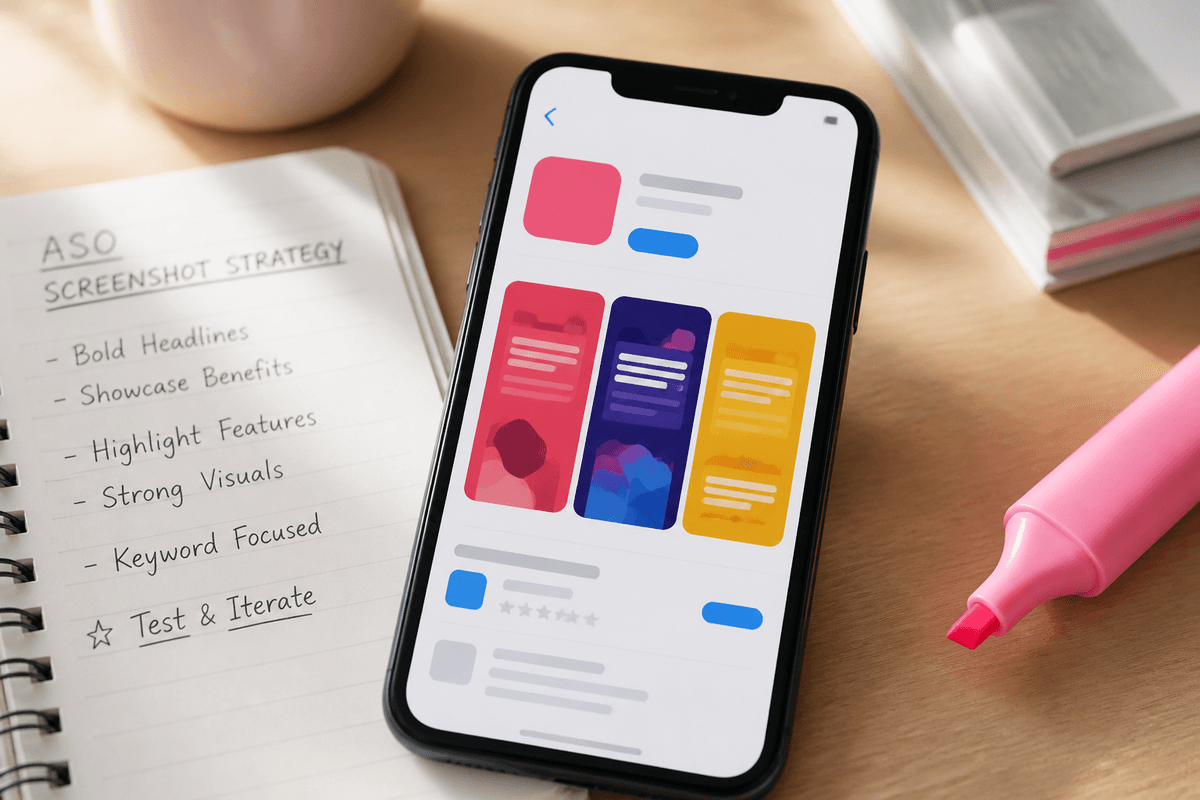
How long should App Store screenshot captions be?
Aim for roughly 3–7 words in the headline. That is not an Apple rule; it is a legibility rule. In search results your screenshot is rendered at a fraction of its 1290×2796 export size, and a seven-word headline set large enough to read at that scale already fills two lines on a portrait slide. Past that, type has to shrink and the caption turns into texture.
A practical test: export the slide, scale it to about 20% on your monitor (roughly the size of a search-result thumbnail on a phone), and read it from arm's length. If you squint, cut words or increase the type size. Do the test on a real phone too, because contrast and font weight behave differently on a bright OLED screen than on a desktop monitor. For more on type scale and contrast, see our app screenshot design best practices.
- Headline: about 3–7 words, one or two lines, one idea
- Subtext: optional, about 6–12 words, one line where possible
- One benefit per slide; never stack two claims with an ampersand
- Front-load the meaning: the first two or three words should carry the benefit
- Apple accepts up to 10 screenshots per device size per localization; Google Play accepts 2–8 phone screenshots
- Only the first few slides show in App Store search results, so slides 1–3 carry most of the message
- Legibility check: readable at roughly 20% scale on a phone held at arm's length
Which headline formulas work for screenshot captions?
Formulas are scaffolding, not scripts. Use them to get a first draft quickly, then rewrite until the headline sounds like your product and describes exactly what the screen below it shows. Four formulas cover most slides.
Verb + outcome is the default because it describes a result the user gets, not a feature you built. Number + benefit works when you have a real, defensible number about the product itself (steps, minutes, categories), never an invented usage statistic. Problem → solution names a pain your audience recognises and resolves it in the same line. "Without X" removes the objection that stops people installing, such as spreadsheets, sign-up walls or ads, but only use it if the claim is true for the app as shipped.
- Verb + outcome: "Track every expense automatically" / "Plan trips in minutes"
- Number + benefit: "3 taps to log a workout" / "Every bill in one view" (use only numbers you can prove)
- Problem → solution: "Forgot a bill? Get reminded first" / "Messy notes, instantly organized"
- "Without X": "Budget without spreadsheets" / "Meditate without the jargon"
- Bonus, possessive framing: "Your week, finally planned" works well for hero slides
Screenshot headline examples by category (48 illustrative captions)
The examples below are illustrative drafts written for hypothetical apps, not copy taken from real listings. Use them to see the formulas in action, then replace generic nouns with the specific thing your screen shows. A caption only works if the UI underneath proves it.
- Finance: "Track spending in one tap" · "See where your money goes" · "Budget without spreadsheets" · "Every account in one view" · "Never miss a bill again" · "Save automatically each payday"
- Fitness: "Log a workout in seconds" · "Your plan adapts as you improve" · "Train at home, no equipment" · "See your progress every week" · "Short workouts that fit lunch" · "Stay on track with streaks"
- Productivity: "Plan your week in minutes" · "Turn notes into tasks" · "Focus on what matters today" · "Every project, one calm board" · "Capture ideas before they vanish" · "Meetings, summarized for you"
- Education: "Learn Spanish in 10-minute lessons" · "Practice speaking out loud" · "Flashcards that know what you forget" · "Study offline, anywhere" · "Track every subject's progress" · "Explanations, step by step"
- Travel: "Plan trips in minutes" · "Your itinerary, always offline" · "Every booking in one place" · "Find hidden local spots" · "Split trip costs without awkwardness" · "Packing lists that build themselves"
- Wellness: "Wind down in five minutes" · "Meditate without the jargon" · "Sleep sounds for every night" · "Notice your mood patterns" · "Breathe through stressful moments" · "A gentle daily check-in"
- Utilities: "Scan documents to clean PDFs" · "Free up storage in one tap" · "Find any file instantly" · "Convert units without ads" · "Back up photos automatically" · "Your passwords, safely in one place"
- Games: "Build your kingdom, brick by brick" · "Play daily puzzles in minutes" · "Challenge friends in real time" · "Unlock 12 unique worlds" · "Collect, upgrade, and battle" · "Relax with no timers"
How to write subtext that supports the headline
Subtext is optional. Many strong sets use headlines only. Add a second line when it supplies something the headline cannot: a concrete detail, a qualifier that keeps the claim honest, or proof the screen does what the headline says. If the subtext merely restates the headline in more words, delete it.
Set subtext noticeably smaller and lighter than the headline so the hierarchy reads instantly, and never let it carry the main benefit. People scanning thumbnails will read the headline and skip everything else.
- Keep it to one line where possible, roughly 6–12 words
- Add specificity: "Syncs with your bank in under a minute" under "Every account in one view"
- Add honesty: qualifiers like "on supported devices" or "with Pro" belong here, not in fine print
- Do not repeat the headline's verb or noun
- No feature lists separated by commas; that is a description, not a caption
- Never place subtext over busy UI where it loses contrast
Slide-by-slide narrative: what each caption should do
A screenshot set is a sequence, not a gallery. Each caption should advance one story: what the app does for me, how it works, why it is better, and why I can trust it. The first three slides do most of the work because they are the ones visible without scrolling in many App Store search layouts, so put your strongest benefit first. Our guide to screenshot order that converts goes deeper on sequencing.
If you have more than five slides, keep extending the pattern with secondary features ranked by how often users ask for them. Weak slides at positions 8–10 rarely hurt, but weak slides at positions 1–3 cost installs.
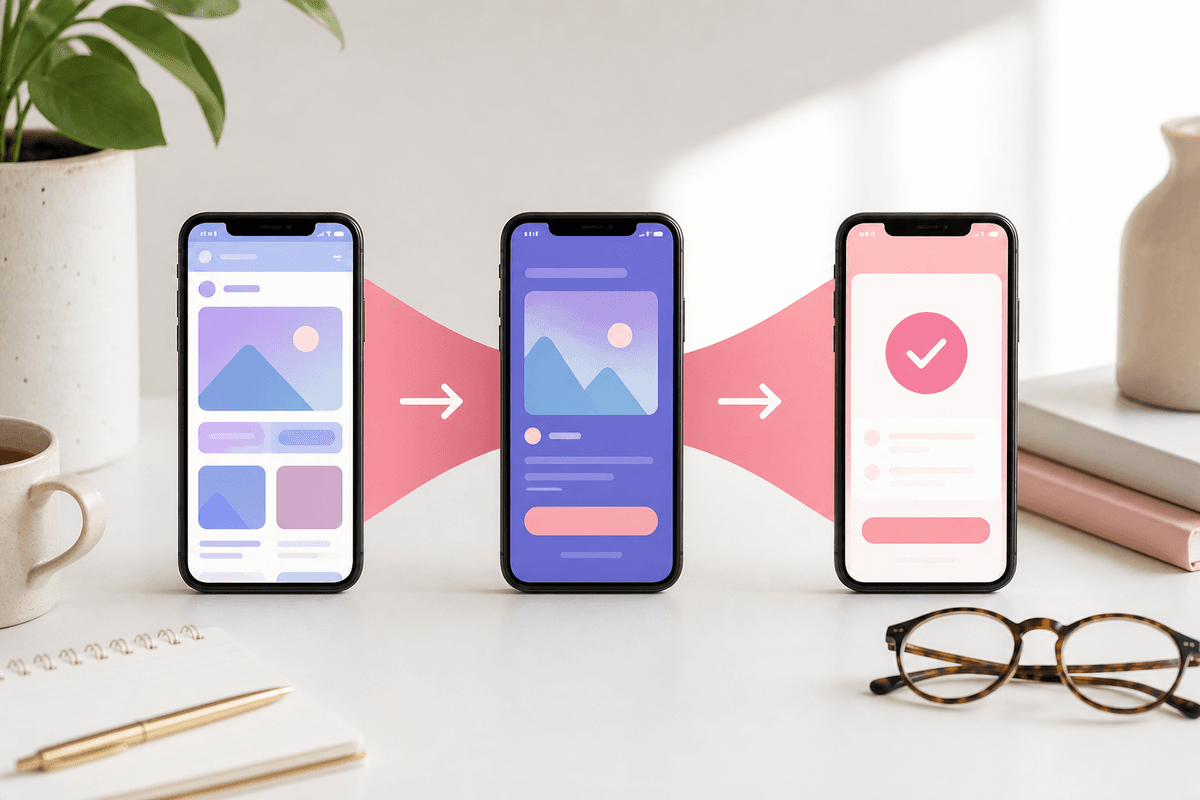
- Hero: the primary outcome in one line ("Track spending in one tap"), over your best screen
- Core action: show the main workflow and name the result ("Log any expense in seconds")
- Differentiator: the feature competitors lack or do worse ("Bills sorted before they're due")
- Depth: a secondary feature users value ("Shared budgets for couples")
- Trust or reassurance: privacy, offline access, ratings or awards you can verify, never invented numbers
- Close: what happens next or who it is for ("Built for freelancers with irregular income")
Do keywords in screenshot captions help ASO?
Possibly, but treat it as a secondary effect. Apple has said screenshot captions can help the App Store understand your app, which implies it can read text from your screenshots. Apple has not published how, or how much, caption text affects ranking. Your title, subtitle and keyword field remain the documented places for search terms.
The safe approach: write for people first, and where it is natural, use the same words your audience searches for. If users search "budget planner", a caption like "Your budget planner, finally simple" serves both readers. Never keyword-stuff. A caption such as "Budget Tracker Expense App Money Manager" is unreadable, looks spammy next to competitors, and risks review issues under Apple's metadata guidelines. On Google Play, screenshots are not a documented ranking input; your title and descriptions are. See the ASO topic hub for the wider keyword picture.
How to localize App Store screenshot copy
Translate meaning, not words. A punchy English verb + outcome headline can become long or awkward when translated literally. Give translators the intent of each slide ("hero: saves time on budgeting") and the character budget, and let them write a native headline rather than a word-for-word copy.
Plan for text expansion: German and French often run longer than English, while Japanese and Chinese are shorter but may need larger type for legibility. Leave room in the layout instead of shrinking the font per locale. Our screenshot localization guide covers prioritising markets and keeping visuals consistent.
- Localize screenshots that show UI text, not only the captions, so the app and headline match
- Re-check line breaks in every locale; awkward breaks are the most common localization bug
- Adapt examples: currency, date formats, names and units in demo data
- Avoid idioms and wordplay that do not survive translation
- Have a native speaker read the final exported slides, not just the spreadsheet
Before and after: screenshot caption rewrites
Most weak captions fail in one of a few predictable ways: they name a feature instead of a benefit, they are too long to read at thumbnail size, or they promise something the screen does not show. These hypothetical rewrites show the fix pattern.
- Before: "Dashboard" → After: "See your whole month at a glance" (feature label to outcome)
- Before: "Powerful AI-driven task management platform" → After: "Turn notes into tasks" (jargon to a concrete action)
- Before: "Track workouts, meals, sleep, water and more" → After: "Log a workout in seconds" (list to one idea)
- Before: "The best meditation app" → After: "Wind down in five minutes" (unprovable claim to specific benefit)
- Before: "Welcome to TripPlanner" → After: "Plan trips in minutes" (app name to promise)
- Before: "Don't waste money on subscriptions you forget" → After: "Spot forgotten subscriptions" (long negative to short positive)
- Before: "Expense Budget Money Tracker App" → After: "Budget without spreadsheets" (keyword stuffing to human copy)
Common App Store screenshot copy mistakes
Run your draft set past this list before you export. Most of these are fast to fix and visible the moment you look at the slides at search-result size.
- Repeating the app name on every slide; your icon and title already say it
- Generic feature labels ("Settings", "Profile", "Dashboard") instead of benefits
- Captions that do not match the UI beneath them, which breaks trust instantly
- Two ideas per headline joined with "and" or an ampersand
- Tiny type that disappears on a phone in search results
- Invented statistics or "#1" claims you cannot back up
- Mentioning prices or promotions that will go stale or differ by region
- Inconsistent tone: playful on slide 1, corporate on slide 4
- Copy written once in English and pasted into every locale unchanged
How StoreShots drafts screenshot headlines from your real screens
Writing captions is faster when you start from a draft grounded in what your app actually shows. In StoreShots AI, you upload 3–10 real screenshots from one app. The AI maps each screen to a purpose in the narrative (hero, core action, differentiator and so on), then drafts a headline, subtext and visual theme for each. Your uploaded UI stays the source; it does not redraw your app.
You preview a hero frame first, generate the full pack, and then edit: rewrite any headline yourself or chat-revise a single slide ("make this shorter", "lead with the offline benefit"). Treat the AI copy as a first draft and apply the rules above before you export. Exports are App Store iPhone PNGs at 1290×2796 and Google Play phone PNGs at 1080×1920, delivered as a ZIP. StoreShots does not produce iPad screenshots, Play feature graphics or app preview videos, so plan those separately. Pricing is one-time credit packs with no subscription; see pricing or browse a sample pack first.
FAQ
Questions about this topic
How many words should an App Store screenshot headline have?
Aim for roughly 3–7 words. That keeps the headline to one or two lines at a type size that stays readable when the screenshot is shown as a small thumbnail in search results. If you need more words, the slide is probably trying to say two things.
Should every App Store screenshot have a caption?
Most screenshots benefit from a short caption that explains the benefit of the screen shown. Games with strong visual art sometimes use fewer captions, but for utility, finance, health and productivity apps, uncaptioned UI rarely explains itself at thumbnail size.
Do screenshot captions affect App Store search ranking?
Apple has said screenshot captions can help the App Store understand your app, but it has not published how much they affect ranking. Write for people first, use natural search terms where they fit, and keep keywords in your title, subtitle and keyword field.
What is the best headline formula for the first screenshot?
Verb + outcome is the most reliable formula for the hero slide. It states the main result the user gets, such as "Plan your week in minutes", and pairs naturally with your strongest screen. Test alternatives with Apple's Product Page Optimization once you have traffic.
Should I translate screenshot copy word for word?
No, localize the meaning instead of translating literally. Give translators each slide's intent and a length budget so they can write a native headline, then check line breaks and demo data in the exported slides for every locale before you upload.
Can AI write App Store screenshot copy?
Yes, AI can produce useful first drafts, especially when it works from your real screens. StoreShots AI drafts a headline and subtext per uploaded screen; you should still edit each one for accuracy, tone and length before exporting your final set.
Sources
Official references used
- Screenshot specifications (Apple App Store Connect Help)
- App Store product page (Apple Developer)
- Product Page Optimization (Apple Developer)
- App Review Guidelines (Apple Developer)
Continue
Choose the next step
Related