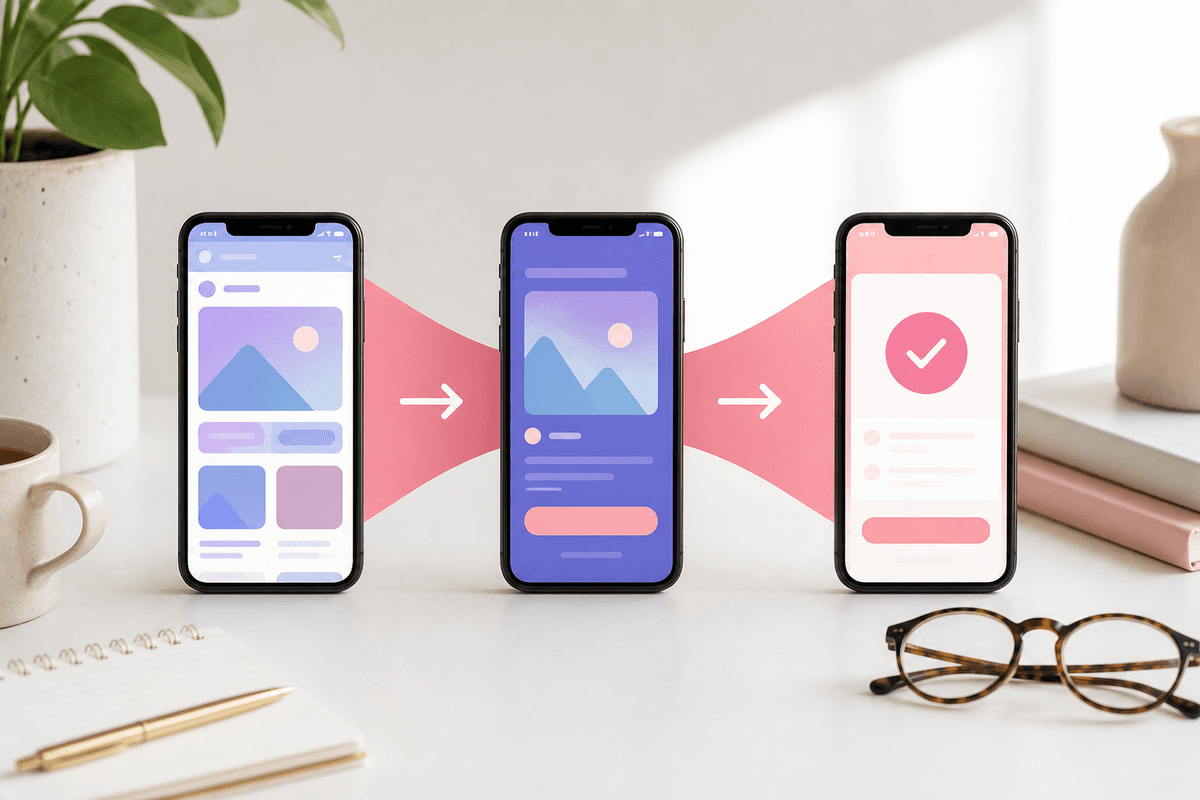
App Store visitors decide in seconds. Your first screenshot is not a branding exercise — it is a promise. The strongest listings open with a clear outcome tied to visible product UI, not a logo splash or generic tagline.
Apple allows up to ten iPhone screenshots per localization. Most high-converting indie apps ship five to seven slides: enough room for a story arc without exhausting scroll depth on a small phone screen.
Recommended slide sequence
- Slide 1 — Hero outcome: one sentence benefit above the primary screen users will use daily
- Slide 2 — Core workflow: show the action that delivers the outcome (search, create, track, message)
- Slide 3 — Differentiator: a feature competitors bury in settings, presented as a headline
- Slide 4 — Depth or variety: secondary module, integration, or persona-specific use case
- Slide 5 — Trust: ratings snippet, user count, award, or security/privacy cue if authentic
- Slide 6 — Optional social proof or comparison frame if you have verifiable numbers
- Slide 7 — Soft CTA: what happens immediately after install (free trial, no account required, etc.)
Headline and UI alignment rules
Every headline must match what is on screen. If the copy says "Track spending in one tap," the UI below should show a tap target or completed action — not an unrelated settings page.
Keep headline length short enough to read in search results. Roughly four to seven words per slide survives carousel cropping better than full sentences.
- Repeat the app name on slide one only — not on every frame
- Use the same background system and device frame across the set
- Export at 1290 × 2796 for 6.7" iPhone portraits unless you maintain separate asset classes
- Regenerate localized headline copy per locale instead of overlaying translated text manually
When to regenerate vs reuse
Reuse the narrative order across releases; regenerate visuals when UI changes materially. Minor bug-fix builds rarely need a full redesign — update slides whose UI changed and keep the rest.
StoreShots AI lets you chat-edit individual slides after the first generation, so you can fix one outdated screen without rebuilding the entire pack or paying again for unchanged exports.
FAQ
Questions about this topic
How many App Store screenshots should I upload?
Five to seven strong slides beat ten weak ones. Lead with outcome, prove the workflow, then add trust. Only fill all ten slots if each slide adds a distinct message.
Should the first screenshot include pricing?
Usually no. Slide one should sell the core outcome. Mention free tiers or trials on a later slide or in the subtitle field, not at the expense of your hero promise.
Sources
Official references used
- Screenshot specifications (Apple App Store Connect Help)
- App Store product page (Apple Developer)
Continue
Choose the next step
Related