Google Play is the world's largest app distribution surface — and its listing format differs materially from Apple's. Phone screenshots, a wide feature graphic, optional promo video, and short description all compete for attention on devices that vary wildly in screen size. Getting Play Store creative wrong does not just look unprofessional; it costs installs when users bounce to the next search result.
A proper play store screenshot generator workflow handles more than slapping text on captures. You need correct 1080 × 1920 portrait exports, a cohesive story across up to eight phone slides, a 1024 × 500 feature graphic that anchors the store page, and ASO copy that matches what users typed into search.
This complete 2026 guide covers sizing, templates, messaging split between assets, localization, common rejection reasons, and how StoreShots AI generates Google Play screenshot templates and export-ready PNGs alongside iOS sizes from one project.
How Google Play uses screenshots in 2026
Play Store search and browse surfaces show your icon, title, rating, and often your first phone screenshot at thumbnail scale. On the full listing, a feature graphic may span the header while the screenshot carousel sits below — each asset plays a distinct role.
Phone screenshots carry the detailed proof: outcomes, workflows, differentiation, trust. The feature graphic is a wide poster — brand mark plus one visual hook, not a six-line paragraph crammed into 1024 × 500 pixels.
Teams that duplicate the same message in both places waste pixels. Teams that align the feature graphic promise with slide-one headline create continuity that reduces bounce.
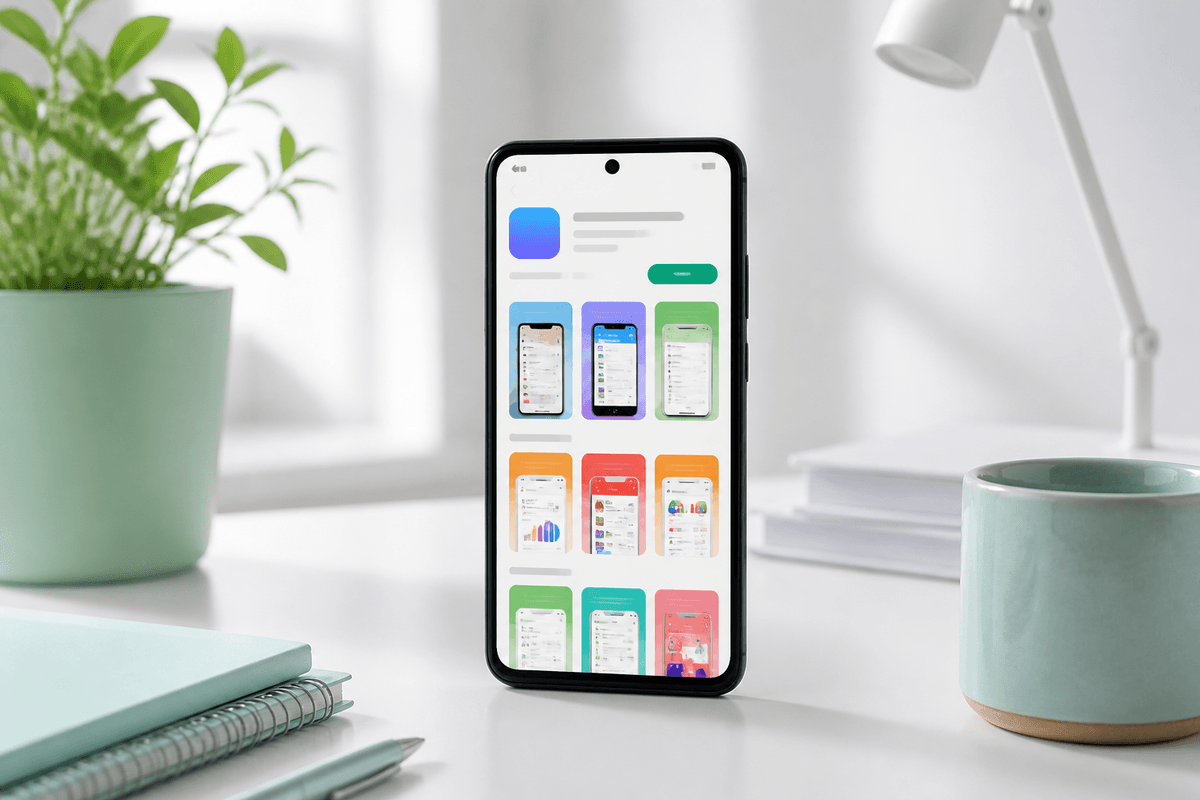
Play Store phone screenshot size: 1080 × 1920
Google Play requires phone screenshots in portrait or landscape depending on device class; most consumer apps standardize on portrait phone captures at 1080 × 1920 pixels. This aspect ratio matches common Android phone proportions and displays cleanly across the ecosystem.
Do not upscale small captures. Start from simulator or device screenshots at native resolution, then compose marketing layouts on a 1080 × 1920 canvas. Upscaling blurs UI and text — users notice immediately next to sharp competitors.
StoreShots AI exports Play Store phone sets at 1080×1920 by default, parallel to App Store 1290×2796 exports from the same captures. See how it works for the dual-export flow.
- Portrait phone: 1080 × 1920 px (most common for consumer apps)
- Up to eight phone screenshots per listing
- Minimum two screenshots required for publication
- PNG preferred when gradients or text overlays are present
- JPEG acceptable for photo-heavy slides without sharp type edges
Feature graphic requirements (1024 × 500)
The feature graphic is a wide banner displayed prominently on your Play Store listing and in some promotional contexts. Required dimensions are 1024 × 500 pixels, PNG or JPEG, with no excessive text — Google may reject graphics that read like ad banners rather than brand visuals.
Treat it as a movie poster: icon or wordmark, one visual metaphor, brand colors pulled from your app icon. Avoid critical detail near edges; safe margins help on varied crop contexts.
Screenshots do the explanatory work; the feature graphic sets mood and recognition. If your slide-one headline promises "Budget in five minutes," the feature graphic should feel like the same product — not a unrelated stock photo.
First screenshot strategy for Play Store search
Your first phone screenshot appears largest in many Play surfaces. It must answer why install — same rule as iOS, different canvas. Lead with an outcome headline above UI showing the happy path, not a settings menu or splash screen.
Android users often compare more listings per session; clarity beats cleverness. Short headlines, high contrast, real product UI. Category-specific proof helps: finance apps show numbers, fitness apps show progress, games show gameplay.
Cross-read our App Store conversion guide for narrative structure — the story arc transfers even when pixel dimensions differ.
Create screenshots with StoreShots AIGenerate Play Store 1080×1920 sets with ASO headlines from your Android captures.Building a Play Store screenshot sequence
Google allows up to eight phone screenshots. Strong sets use five to seven with distinct messages. Structure mirrors iOS best practice: hero outcome, core workflow, differentiator, depth, trust, optional social proof, soft CTA.
Android listings sometimes emphasize integrations (Google Sign-In, Wear OS, widgets) that iOS slides omit — use slide four or five for platform-specific value when it matters to your audience.
Avoid portrait sets that are literally iOS frames dropped onto Play — use Android-appropriate device frames when your tool supports them so users see familiar hardware cues.
- Slide 1 — Hero outcome with primary UI proof
- Slide 2 — Core action that delivers the outcome
- Slide 3 — Differentiator vs category alternatives
- Slide 4 — Integrations, widgets, or Wear/TV if relevant
- Slide 5 — Trust: ratings, security, editorial badges if authentic
- Slide 6 — Social proof with verifiable metrics only
- Slide 7 — Soft CTA: free, offline, no account, etc.
- Slide 8 — Optional seasonal or promo frame if distinct
Google Play screenshot templates that scale
Templates are not laziness — they are consistency engines. A Google Play screenshot template system defines background gradients, headline placement, device frame style, and spacing so every release updates UI captures without redesigning from zero.
Good templates encode ASO lessons: headline safe zones that survive thumbnail crop, contrast ratios that work on OLED, margin rules that keep text off rounded device corners. Bad templates are generic Canva layouts with no store-size export discipline.
StoreShots applies template logic during AI generation — you supply captures and positioning; the tool maintains structure across slides and locales. That is the difference between a template as PNG overlay and a template as production pipeline.
ASO copy for Play Store screenshots
Play Store short description and screenshot headlines should reinforce the same keywords users search — without keyword stuffing. If you target "habit tracker," slide one should visualise habit outcomes, not generic "productivity reimagined."
ASO screenshots bridge discovery and conversion: keywords bring impressions from Google Play search; headlines close the install. Write for humans first, algorithms second.
Keep headline length disciplined — roughly four to seven words per slide. Subtext can expand slightly if hierarchy stays clear. Read how to write App Store screenshot copy; Play Store rules overlap heavily.
Play Store vs App Store: what to reuse
Reuse narrative order, benefit hierarchy, and brand colors across stores. Do not reuse the same PNG without re-exporting dimensions — 1290 × 2796 iOS assets stretched to 1080 × 1920 destroy type clarity.
One project in an AI app screenshot maker should export both size classes from the same creative direction. Feature graphics are Play-only; Apple uses different header assets.
See Play Store vs App Store strategy for asset split detail and AI vs designers if you are choosing production workflow.
- Reuse: story arc, headlines (with length tweaks), palette, capture selection
- Re-export: never stretch; generate native 1080×1920 and 1290×2796
- Play-only: 1024×500 feature graphic
- iOS-only: separate iPad classes if you support tablets
Localization on Google Play
Google Play Console supports per-locale listings. Translating description but not screenshots sends mixed trust signals. Regenerate headline copy per language while locking layout — German expansions break naive text boxes.
When your app UI localizes, capture locale-specific builds for authenticity. Marketing overlays must match the language of the store listing user is viewing.
Our localization guide covers multilingual workflows for both stores; the Play-specific upload paths differ but creative principles align.
Create screenshots with StoreShots AIRegenerate localized Play Store sets at 1080×1920 without rebuilding layouts manually.Using a play store screenshot generator end to end
Step one: capture clean Android UI — emulator or device, light and dark if you market both, real data not embarrassing placeholders. Step two: upload to StoreShots AI and describe audience plus primary outcome.
Step three: generate the carousel, reorder slides to match the sequence above, chat-edit any headline that misstates features. Step four: export 1080 × 1920 PNGs organized by slide index. Step five: upload to Play Console custom store listing, verify preview on phone and tablet contexts.
Step six: after UI changes, replace only affected slides — do not re-pay production tax for unchanged frames. Check pricing for credit models that fit your ship cadence.
- Capture high-resolution Android screens
- Upload and describe app value prop
- Generate styled slides with ASO copy
- Edit individual frames via chat
- Export 1080×1920 PNG set
- Upload to Play Console with feature graphic
- Refresh slides when UI or messaging shifts
Common Play Store screenshot mistakes
Wrong aspect ratio or upscaled blurry UI is the top technical failure. Feature graphics packed with tiny text trigger rejections or poor crops. iOS device frames on Android listings confuse users expecting Pixel or Samsung cues.
Showing permissions dialogs, empty states, or login walls without narrative context wastes slides. Unverifiable "#1 app" claims create policy risk. Mismatch between screenshot promise and in-app reality drives one-star reviews.
- 1080×1920 ignored — stretched from iOS assets
- Feature graphic used as a second screenshot with unreadable type
- More than eight slides planned (Play max is eight phone)
- No feature graphic when competitors all ship polished banners
- Stale UI after major Material redesign
Category-specific Play Store screenshot tactics
Games should show gameplay by slide two — not logo splash or menu trees. Finance apps need legible numbers and trust cues early. Health and fitness categories benefit from outcome metrics users recognize (steps, calories, streaks) rather than abstract wellness language.
Productivity apps face the noisiest competition; differentiation must appear on slide three or earlier. Utilities with narrow jobs — QR scanners, unit converters — should state the job in slide one with zero jargon.
Match Google Play screenshot templates to category norms without cloning competitors pixel-for-pixel. Users notice sameness; they reward clarity.
Working with Play Console custom store listings
Custom store listings let you target specific countries or campaigns with alternate screenshot sets while keeping a default global listing. Use them for localized seasonal campaigns — back-to-school, Ramadan, regional sports events — without overwriting your master creative worldwide.
Each custom listing still demands correct 1080 × 1920 phone assets. Maintain a naming convention: default_slide3.png versus campaign_de_slide3.png. Chaos in Google Drive slows uploads and invites wrong-frame mistakes.
When experiments end, promote winning variants to default and archive losers with notes on why they underperformed — institutional memory beats guessing next quarter.
Promo video, tablets, and other asset classes
Optional promo video can boost engagement when it shows real product motion in under thirty seconds — but weak video hurts more than no video. Many teams prioritize screenshot quality first, add video when production capacity allows.
Tablet, Chromebook, Wear, and TV screenshots have separate size classes if you target those form factors. Consumer phone-first apps can defer tablet sets until tablet usage justifies the effort.
Closed testing and production access for personal developer accounts may run parallel to creative work — polish listings while testers opt in on separate tracks.
Testing and optimization on Google Play
Store Listing Experiments on eligible accounts test alternate screenshot sets against control. Export variants at identical 1080 × 1920 so experiments isolate messaging. Monitor install conversion rate, not just impression volume.
Seasonal refreshes — back to school, new year fitness, holiday shopping — can lift relevance when timed with category demand spikes. Keep a template system so seasonal swaps take hours, not weeks.
Timing screenshot updates with release trains
Screenshot refreshes should land in the same release train as the UI they depict — not a week later when users already post confused reviews. Build screenshot generation into your release checklist alongside metadata, privacy labels, and what's new text.
For staged rollouts, prepare screenshots before phased release begins so the listing matches day-one experience for early adopters. If a feature flag hides UI from most users, do not market it in screenshots until it is broadly available.
Parallel Android and iOS releases benefit from one creative session: generate both 1080×1920 and 1290×2796 exports, then upload to each console the same day to avoid cross-platform trust gaps.
Pre-submit checklist for Play Console
Confirm two to eight phone screenshots at 1080 × 1920, feature graphic at 1024 × 500 if used, headlines match visible UI, no policy-violating claims, localized assets for priority languages, filenames organized for upload sanity.
Run the full store screenshot checklist — it covers Play and App Store gates. Preview listing on multiple Android devices if possible before hitting publish.
Create screenshots with StoreShots AIShip your next Play Store set at 1080×1920 — pair with iOS exports from the same project.Your Play Store creative playbook for 2026
Winning Google Play listings combine technically correct 1080 × 1920 phone screenshots, a restrained 1024 × 500 feature graphic, benefit-led ASO copy, and a narrative sequence that proves your app delivers. Templates and play store screenshot generator tooling exist so you refresh that story every release — not once a year when someone finds time for Figma.
Android competition is dense. Clarity, consistency, and speed of iteration separate listings that convert from listings that merely exist.
Start your next Play Store project in StoreShots AI, export native sizes, and align with our App Store screenshot size guide if you ship both platforms.
FAQ
Questions about this topic
What size are Google Play phone screenshots in 2026?
Portrait phone screenshots should be 1080 × 1920 pixels. This is the standard most consumer apps use. StoreShots AI exports Play Store sets at this dimension automatically.
How many screenshots can I upload to Google Play?
Up to eight phone screenshots per listing; minimum two required. Use five to seven strong slides rather than filling eight with redundant messages.
What is a Play Store feature graphic?
A 1024 × 500 px banner displayed on your store listing. It should show brand identity and one visual hook with minimal text — not replace phone screenshots for feature explanation.
Can I use iOS screenshots on Google Play?
Reuse creative direction and copy, but re-export at 1080×1920. Never stretch 1290×2796 iOS PNGs — text and UI blur. Use Android-appropriate device frames when possible.
Does StoreShots AI generate Play Store and App Store sizes?
Yes. Export Play Store at 1080×1920 and App Store at 1290×2796 from one project with the same captures and headline structure.
Should I localize Play Store screenshots?
Yes for priority markets. Localized headlines improve trust and conversion. Regenerate per locale rather than overlaying translated text manually on fixed layouts.
PNG or JPEG for Play Store screenshots?
PNG when you use gradients, transparency, or sharp text overlays. JPEG can work for photo-dominant slides without small type.
How do Google Play screenshot templates help?
Templates lock layout, spacing, and export dimensions so you swap UI captures after each release without redesigning. AI generators apply template discipline during creation and re-export.
Sources
Official references used
- Add preview assets: screenshots and graphics (Google Play Console Help)
- Store listing experiments (Google Play Console Help)
Continue
Choose the next step
Related