“The dimensions of one or more screenshots are wrong” means App Store Connect found an image whose exact pixel width and height do not match any size accepted for that device slot. Fix it by checking each file’s real pixel size, re-exporting at an accepted size such as 1290×2796 for the 6.9-inch iPhone slot, and removing any transparency.
The error is frustrating because App Store Connect does not tell you which file failed or why. In practice it almost always comes down to a short list of causes: the wrong slot, a file that is one pixel off, a design tool exporting at the wrong scale, a rotated canvas, or an alpha channel. This guide walks through each one, shows how to check pixel sizes on macOS and Windows, and gives you a repeatable fix flow so the next upload goes through on the first try.
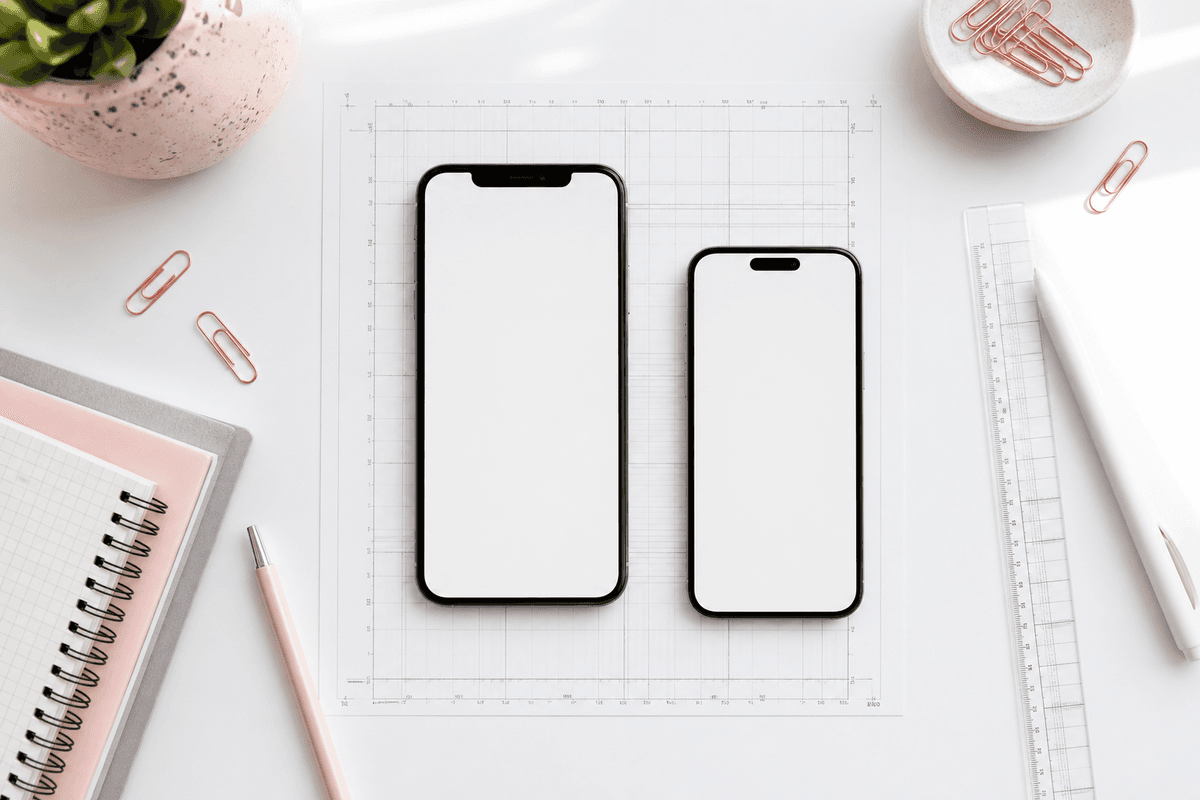
What does “the dimensions of one or more screenshots are wrong” mean?
Each screenshot slot in App Store Connect (the 6.9-inch iPhone display, the 6.5-inch display, the 13-inch iPad and so on) has a fixed list of accepted pixel sizes. When you drag files in, App Store Connect reads the pixel dimensions stored in each image and compares them to that list. There is no tolerance: 1290×2795 fails just as hard as 800×600, and App Store Connect will not crop or resize for you.
Two things the check does not care about: how big the file looks on your screen and the DPI or “resolution” metadata some editors write. A 1290×2796 PNG saved at 72 DPI and one saved at 300 DPI are identical as far as Apple is concerned. Only the pixel grid counts, plus the format rules (PNG or JPEG, no transparency).
If you are new to the size landscape, our App Store screenshot size guide explains every display class in more depth. This article stays focused on getting a rejected upload accepted.
Accepted App Store screenshot sizes: quick reference
These are the sizes most iPhone and iPad apps need in 2026, based on Apple’s screenshot specifications. Apple updates the list when new hardware ships, so confirm against App Store Connect Help before a major release.
- 6.9-inch iPhone slot (portrait): 1320×2868, 1290×2796 or 1260×2736 px
- 6.9-inch iPhone slot (landscape): the same sizes with width and height swapped, e.g. 2796×1290
- 6.5-inch iPhone slot (portrait): 1284×2778 or 1242×2688 px
- 13-inch iPad slot (portrait): 2064×2752 or 2048×2732 px, required if your app runs on iPad
- Formats: PNG or JPEG only, RGB, no transparency or alpha channel
- Quantity: 1 to 10 screenshots per device size per localization
- No tolerance: a single pixel over or under fails the whole upload
The most common causes of the wrong dimensions error
Work through these in order. The slot and pixel-size causes are the quickest to rule out; the alpha channel issue tends to take longest to spot because the image looks perfect.
- **Wrong slot (6.9 vs 6.5 inch).** A 1284×2778 file is valid, but only in the 6.5-inch slot. Dropping it into the 6.9-inch slot, or dropping iPhone files into the iPad tab, triggers the error.
- **Off-by-one pixel.** Manual crops, a canvas set to 1290×2797, or a frame with a fractional height that rounds up on export all produce files that are one pixel off.
- **@1x or @2x export scale.** Figma and Sketch iPhone frames are often 430×932 points. Exported at 1x you get 430×932, at 2x you get 860×1864. You need 3x to reach 1290×2796.
- **Landscape vs portrait mix-up.** A canvas that was rotated, or an export that swapped width and height, produces 2796×1290 when you meant a portrait shot. Make sure orientation is intentional.
- **Alpha channel or transparency.** PNGs exported with transparency enabled, even if every pixel is opaque, can be rejected. Rounded-corner device frames on a transparent canvas are the usual culprit.
- **Wrong format or color mode.** WebP, HEIC, TIFF or CMYK files are not accepted. Save as an RGB PNG or JPEG.
- **Window screenshots instead of device captures.** Grabbing the Simulator window with a system screenshot shortcut captures the window at your display’s scale, often with a bezel, instead of the device’s native resolution.
- **Missing iPad set.** If your app supports iPad, App Store Connect requires 13-inch iPad screenshots. That shows up as a missing-screenshots blocker rather than this exact message, but it often surfaces in the same submission.
How to check a screenshot’s exact pixel size on Mac and Windows
Never trust the filename or the artboard name. Check the file itself, ideally all files at once, before you open App Store Connect.
On macOS, open the image in Preview and choose Tools > Show Inspector. The General tab lists the pixel dimensions. For a whole folder, use Terminal: sips -g pixelWidth -g pixelHeight *.png prints the width and height of every PNG, and sips -g hasAlpha *.png tells you which files still carry an alpha channel. That pair of commands is the fastest App Store screenshot size checker you already have installed.
On Windows, right-click the file, choose Properties, then open the Details tab. Under Image you will see Dimensions (for example 1290 x 2796) and Bit depth. A bit depth of 32 on a PNG usually means it includes an alpha channel; 24 means plain RGB. In File Explorer you can also add a Dimensions column in Details view to scan a folder quickly.
Step-by-step: fix a rejected App Store Connect screenshot upload
Follow this flow whenever an upload fails. It takes a few minutes and avoids the trial-and-error loop of re-dragging files into the browser.
- Note which tab and slot you were uploading to (iPhone 6.9-inch, iPhone 6.5-inch or iPad 13-inch).
- Run a size check on every file in the batch with sips or Windows Properties and list any file that does not match the accepted sizes for that slot.
- Check orientation: portrait files should be taller than they are wide. Fix any swapped width and height at the source, not by rotating the final PNG.
- Check for alpha with sips -g hasAlpha or the Windows bit depth, and flatten any file that has it (see the next section).
- Re-export failing files from your design tool at the correct scale (3x for a 430×932 point frame) or with the canvas set to exact pixels. Avoid stretching an image from one aspect ratio to another; crop or rebuild the layout instead.
- Confirm the format is PNG or JPEG in RGB, then re-run the size and alpha checks on the new files.
- Upload the batch to the correct slot again. If it still fails, upload files one by one to find the single bad file.
How to remove the alpha channel from an App Store screenshot
Transparency is the sneakiest cause because the screenshot looks finished. The fix is to flatten the image onto a solid background and save it without an alpha channel.
On macOS, the quickest route is converting to JPEG, which cannot hold transparency: sips -s format jpeg input.png --out output.jpg. If you prefer to keep PNG, open the file in Preview, choose File > Export, pick PNG and untick the Alpha checkbox. If you have ImageMagick installed, magick input.png -background white -alpha remove -alpha off output.png flattens onto white and drops the channel.
In Figma, make sure the exported frame has a solid fill rather than a transparent background, especially if your device frame has rounded corners. In Canva or similar tools, avoid the transparent-background export option. After exporting, run the alpha check again before uploading.
6.9-inch vs 6.5-inch screenshot slot: which one do you need?
Apple treats the 6.9-inch iPhone display as the primary iPhone screenshot set, and it can scale your largest set down for smaller iPhone displays. For most apps, one great 6.9-inch set at 1290×2796 is enough; App Store Connect shows which slots are required for your app, so check there rather than assuming.
The mix-up usually happens when an older template or a 6.5-inch simulator produces 1284×2778 or 1242×2688 files. Those are valid sizes, but only for the 6.5-inch slot. Either upload them there or re-export at a 6.9-inch size. The aspect ratios are close but not identical, so stretching 1284×2778 to 1290×2796 will slightly distort your UI and headline text.
If your app runs on iPad, plan a separate 13-inch iPad set at 2064×2752 or 2048×2732. iPhone screenshots cannot be reused there, and tablet layouts usually need their own composition. The screenshot checklist before submitting covers these device requirements alongside copy and localization checks.
In-app purchase review screenshots and other uploads that fail
In-app purchases and subscriptions have their own review screenshot field, separate from your product page screenshots. It is only seen by App Review, but it still has to meet Apple’s image requirements. The safest approach is to use an unedited device or Simulator capture of the purchase screen, saved as PNG or JPEG without transparency, and check App Store Connect Help for the current requirement if it is rejected.
Custom product pages and Product Page Optimization treatments use the same screenshot slots and size rules as your main product page. If a set passes on the default page, the same files will pass there too.
Prevent the error: build exact sizes into your export
The long-term fix is to stop producing screenshots at arbitrary sizes. Set up your design file with canvases at exact pixel sizes (or point frames with a locked 3x export), keep a separate preset for iPad if you need it, and run the sips check as part of your release checklist.
If you would rather not manage export settings at all, StoreShots AI exports App Store iPhone screenshots as PNGs at exactly 1290×2796 with no alpha, ready for the 6.9-inch slot, from the real app screenshots you upload. It does not generate iPad screenshots or app preview videos, so iPad apps still need a separate tablet set. You can see finished packs on the sample page and compare credit packs on pricing.
Once the sizes are right, spend your time on what actually moves installs: the order of your screenshots and the headline on each slide.
FAQ
Questions about this topic
Why does App Store Connect say the dimensions of one or more screenshots are wrong?
At least one file’s exact pixel size does not match the accepted sizes for the slot you uploaded to. Common reasons are using a 6.5-inch file in the 6.9-inch slot, an export that is one pixel off, the wrong export scale in Figma, or swapped width and height. Check every file with Preview’s Inspector or sips before re-uploading.
What size should App Store screenshots be in 2026?
For iPhone, use a 6.9-inch size: 1320×2868, 1290×2796 or 1260×2736 pixels in portrait. The 6.5-inch slot accepts 1284×2778 or 1242×2688, and iPad apps need a 13-inch set at 2064×2752 or 2048×2732. Apple updates these specifications, so confirm in App Store Connect Help before you export a new set.
Can App Store screenshots have a transparent background?
No, App Store screenshots must not contain transparency or an alpha channel. Flatten the image onto a solid background and export it as PNG without alpha, or convert it to JPEG with sips -s format jpeg. Rounded device frames on a transparent canvas are the most common way an alpha channel slips into an otherwise correct file.
How do I check a screenshot’s pixel dimensions on a Mac?
Open the image in Preview and choose Tools > Show Inspector to see its pixel width and height. For a whole folder, run sips -g pixelWidth -g pixelHeight *.png in Terminal, and add sips -g hasAlpha *.png to find files that still contain an alpha channel. Both tools are built into macOS, so no extra software is needed.
Can I upload 6.5-inch screenshots to the 6.9-inch slot?
No, 6.5-inch sizes such as 1284×2778 are only accepted in the 6.5-inch slot. Upload them there, or re-export your designs at a 6.9-inch size like 1290×2796. Avoid stretching one to the other, because the aspect ratios differ slightly and your UI and text will look distorted on the product page.
Does StoreShots AI export screenshots at the right size for App Store Connect?
Yes, StoreShots AI exports App Store iPhone screenshots as 1290×2796 PNGs without transparency, which fit the 6.9-inch slot. It builds them from real app screenshots you upload and delivers a ZIP. It does not create iPad screenshots or app preview videos, so apps that support iPad still need a separate 13-inch set.
Sources
Official references used
- Screenshot specifications (Apple App Store Connect Help)
- App Store product page (Apple Developer)
- Product Page Optimization (Apple Developer)
Continue
Choose the next step
Related