A prompt is not a substitute for product thinking. It is a faster way to get a first vertical slice on screen. In 2026 the useful pattern is: one brief, a connected screen plan, generate, then export code your engineers can actually open.
This guide walks through that path in StoreShots AI Mobile UI/UX — the same workspace that also generates App Store and Play Store screenshots once you have real captures.
Write a brief that names the jobs
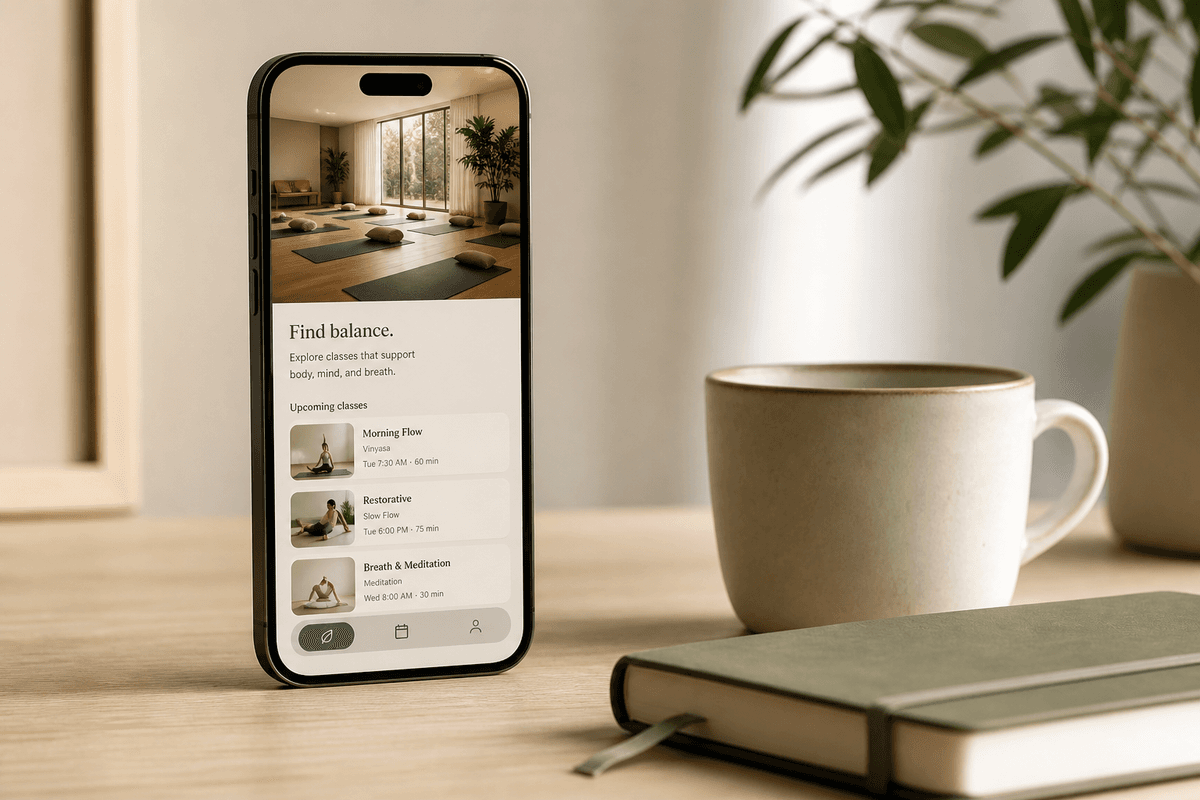
Weak prompts name a vibe. Strong prompts name jobs: who uses the app, what they do first, and which three to eight screens matter. Example: “Design a calm wellness booking app with discovery, class details, checkout, and upcoming bookings.”
Add constraints that affect layout: light or dark appearance, language, and optional reference photos. StoreShots uses those to keep the visual direction stable across the pack.
- Name the product and the primary user
- List the screens in the order people move through them
- Call out must-have actions (book, pay, message, track)
- Attach up to three visual references if you have a brand look
Review the screen plan before you spend credits
Generation should not surprise you with a random set of pretty but disconnected frames. StoreShots plans the pack first — names and briefs per screen — so you can rename “Screen 3” to “Checkout” and fix the story before any credit is charged for renders.
Edit the plan until it matches a real user path. Then generate. That is cheaper than regenerating a whole app because slide two was actually a settings dump.
Generate, revise one screen, export the ZIP
Each generated screen lands on a live canvas. If checkout feels too heavy, chat-revise that screen only. Home and detail stay put.
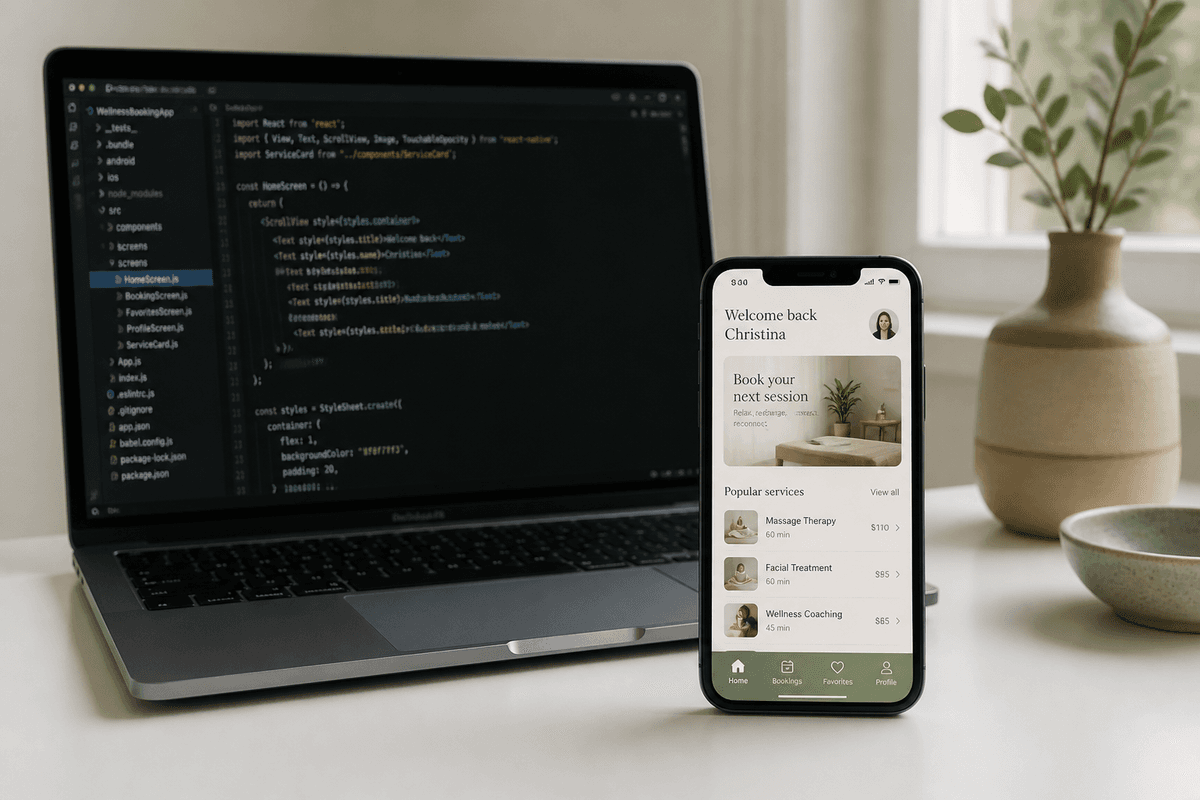
When the flow is right, export a ZIP: PNG renders for stakeholders, plus HTML, React, and React Native for development. See the companion article on AI mobile UI generators and code export.
After UI: listing screenshots from real captures
Once the app exists, switch to StoreShots listing mode. Upload the real iOS or Android screens and generate App Store 1290×2796 and Play Store 1080×1920 packs with ASO headlines. That is a different job from UI generation — and it is the same product.
Browse sample packs, then pricing. Credits never expire.
FAQ
Questions about this topic
How many screens should I generate from one prompt?
Three, five, or eight connected screens is the usual range. Start with the path a new user actually takes, not every settings page.
Do I need Figma if I use an AI mobile UX generator?
Not for the first slice. You may still use Figma later for brand systems. StoreShots gives you canvas UI plus HTML, React, and React Native so engineering can start immediately.
Sources
Official references used
- React Native (Meta Open Source)
- React (Meta Open Source)
Continue
Choose the next step
Related